
Inviting people to your event
Last updated: August 28, 2025
💡 This article has moved here.
Under Share category, you can share your event using different external channels or invite your attendees directly through their email.
To invite attendees to your event using email, go to Invite settings under Share category.
Modify invitation email
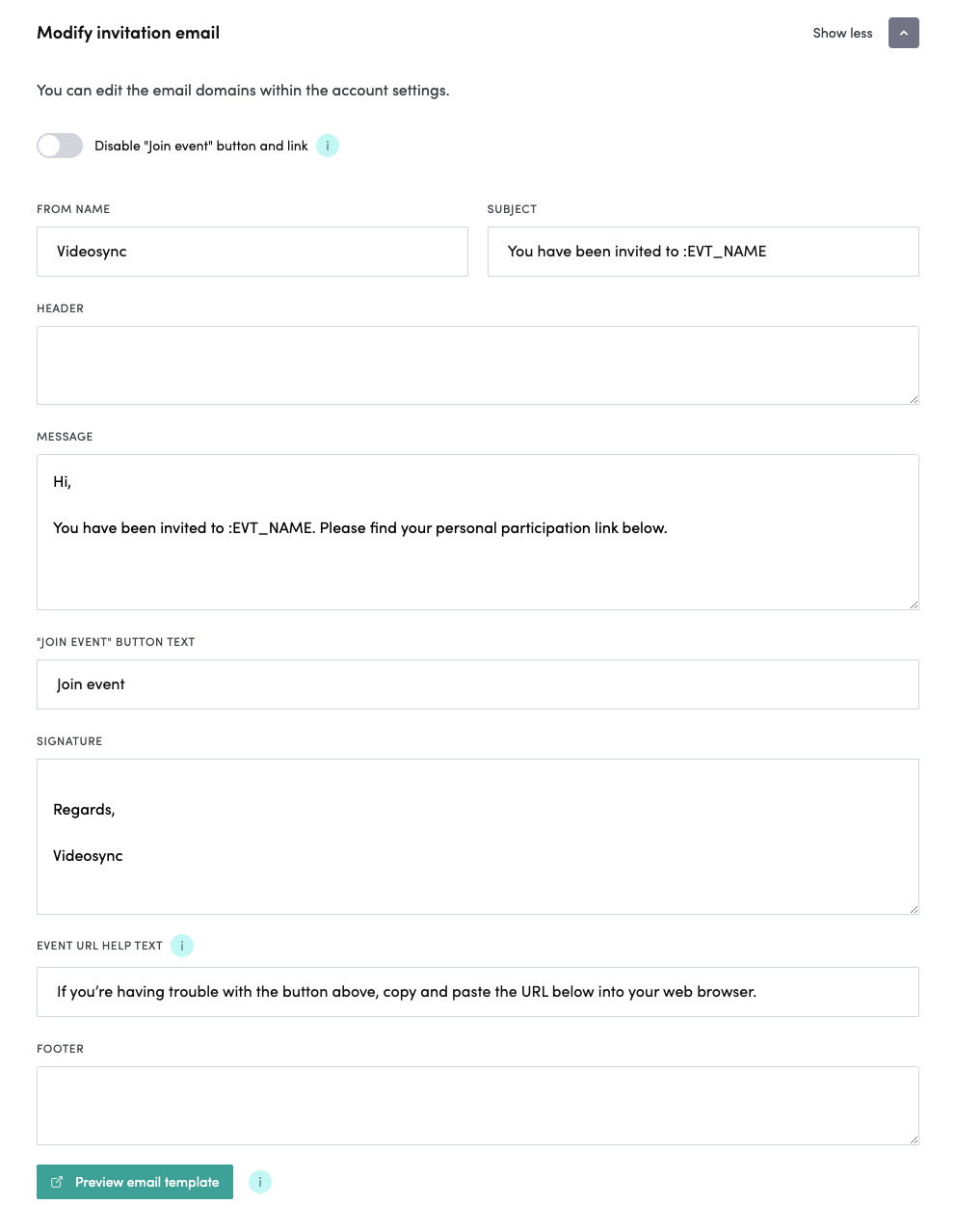
In these settings, you can modify the settings of invitation emails. You can change the sender, email subject, message (with separate header & footer), Join button’s text, signature and help text. There is also a button to preview the invitation email to see how it looks in the participants’ email.
Send as a calendar invitation
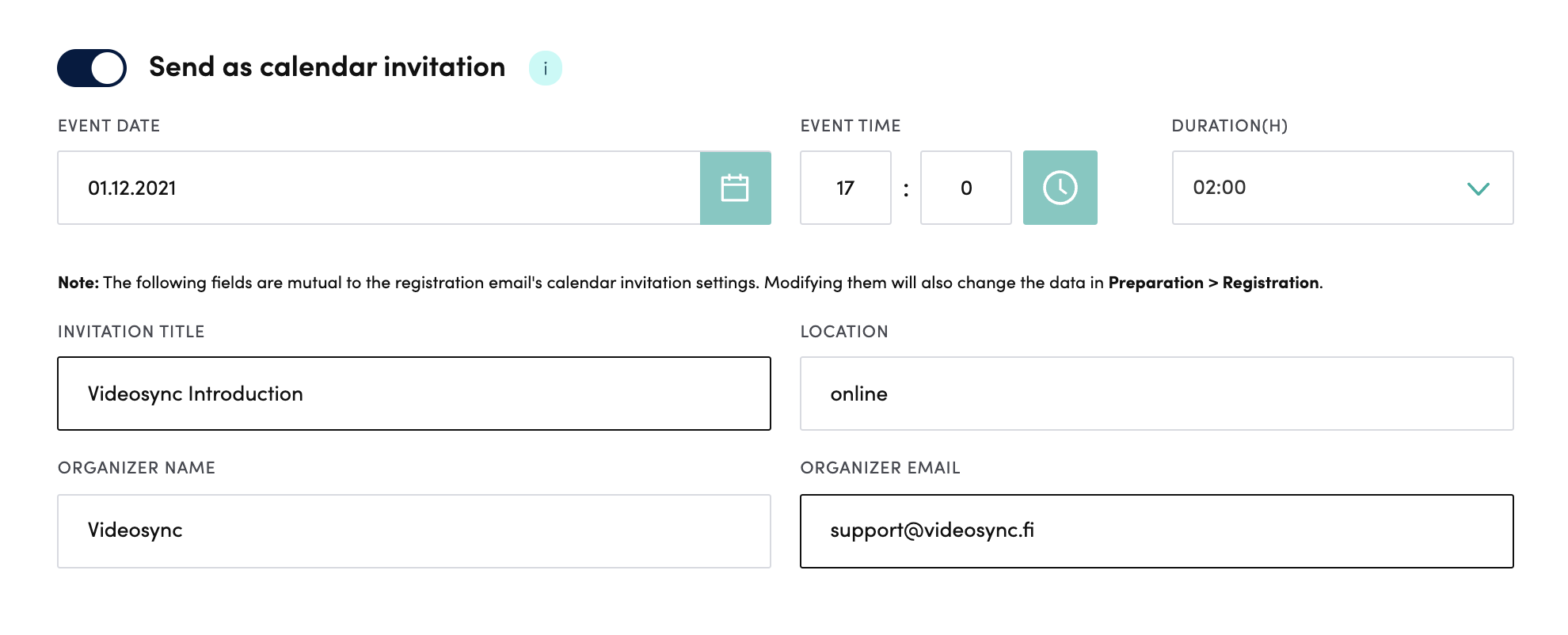
You can include a calendar invitation to your email message. If you need to, you can change the event dates and calendar title, location and organizers.
Add participants & send invitations
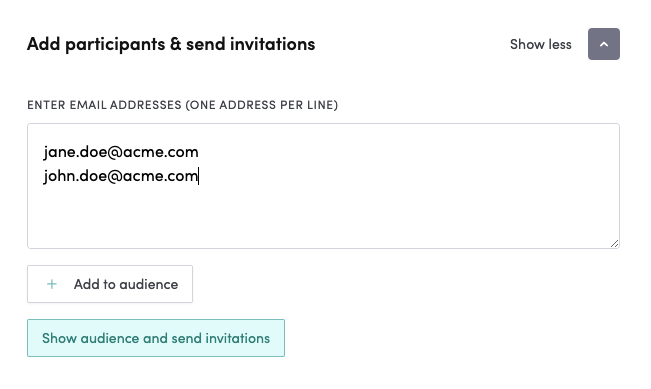
You can add email addresses to the textarea as shown above. To add the registrants, click the “Add to audience” button.
If you want see the registrants or/and send invitations, click “Show audience and send invitations”. The list contains all registrations, which you can modify and remove.
To send the invitation email, select all or certain ones from the leftmost column and click “Send Emails to selected”.
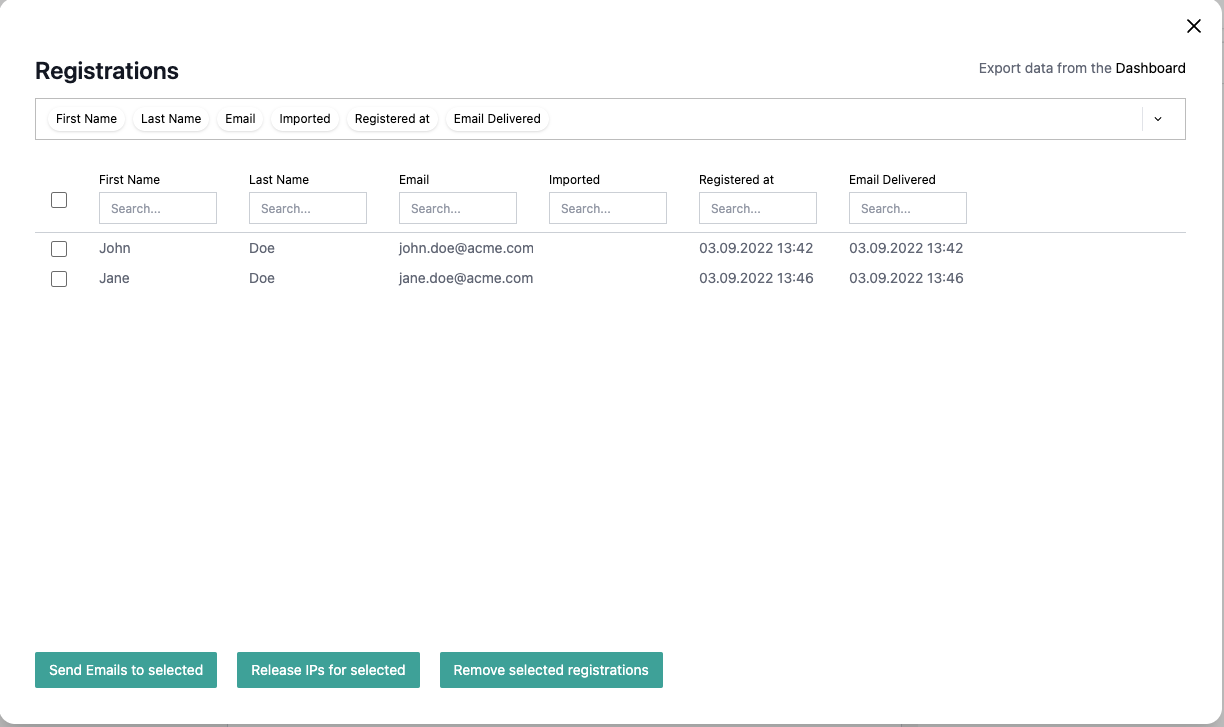
Sending invitations to a specific participant group
You can also send emails to only some of the participants.
Here, for example, a custom registration field “Location” is used to filter out the participants that have selected “On-site” as their location in the registration form.
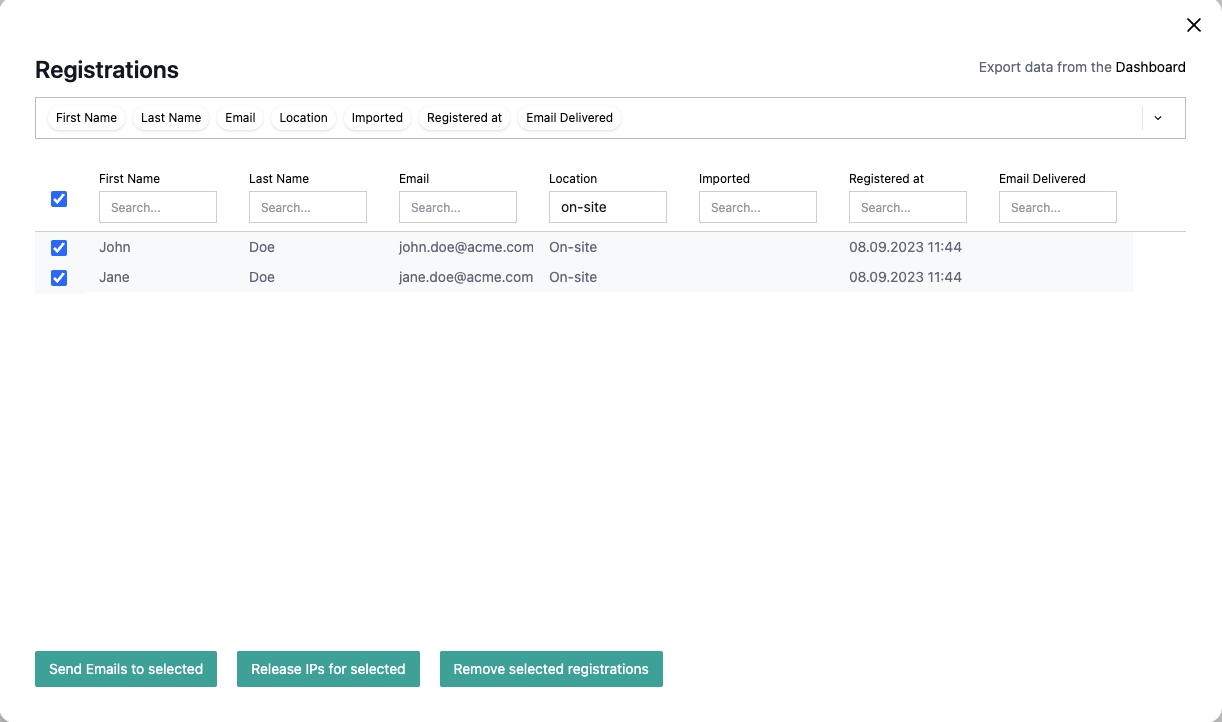
First, you filter out the participants by using the input field on the top of the “Location” column to show only “on-site” participants, then select all from the leftmost column and click “Send Emails to selected”.
Tip: You can also edit the invitation email beforehand to personalize it for on-site users using the “Modify invitation email” settings before sending.
Reminders
The Email Reminder feature allows you to set up automated email reminders that will be sent to registered users relative to an event’s publishing date. Reminders can be scheduled for both before and after the publishing date.
Setting Up Reminders
Reminders are configured with a time offset in minutes from the publishing date
- Negative offset values (–60) schedule the reminder before the publishing date
- Positive offset values (60) schedule the reminder after the publishing date You can add reminders by enabling Registration ⇒ Email settings ⇒ Email reminders, and clicking Add reminder email before the event or Add follow-up email after the event.
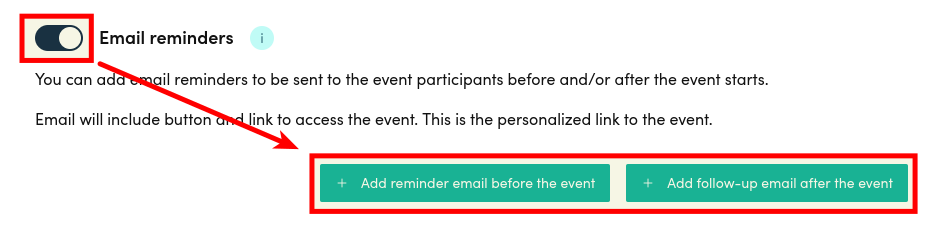
After clicking either of the buttons above, you will see a form like this:
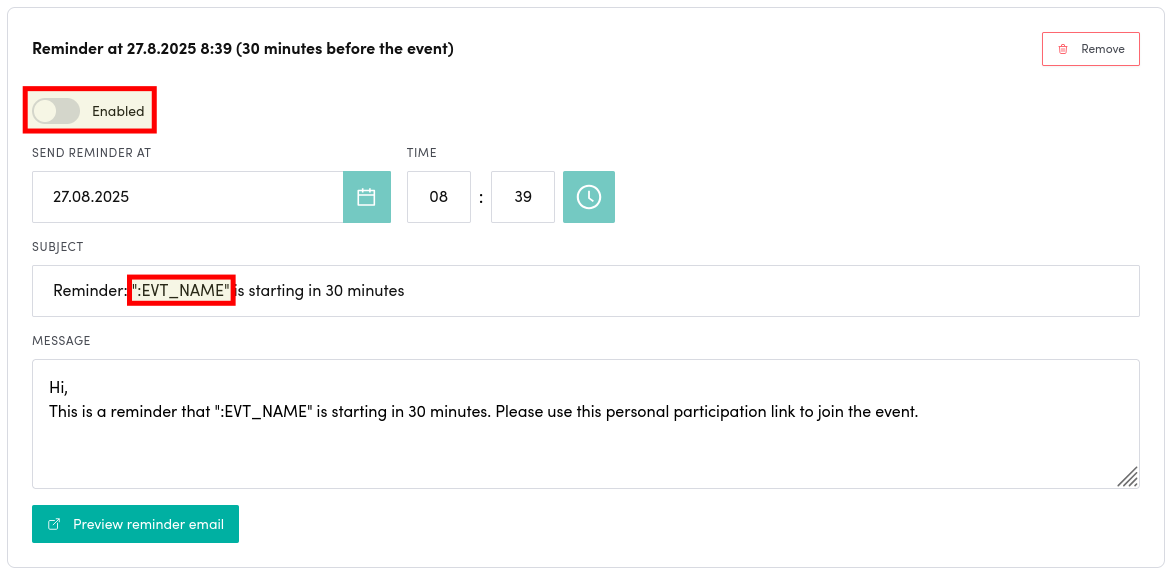
Wherever you use :EVT_NAME, it will be replaced with the event’s name.
You can also preview the email with Preview reminder email which opens only a preview of the email that will be sent. Final email may differ from this preview as email clients render the email differently.
Smart Anti-Spam Protection
To prevent users from receiving reminders too soon after registration, the system implements smart timing logic:
Minimum Time Before Reminder
The system calculates a minimum required time between user registration and when they can receive a reminder. This is determined by:
- Taking the absolute value of the reminder’s offset and doubling it
- Example: For a 1-hour pre-event reminder (–60 minutes), the minimum time would be 2 hours
- Example: For a 3-hour post-event reminder (180 minutes), the minimum time would be 6 hours
- The system enforces a minimum threshold of 2 hours, even for small offsets
- Example: For a 30-minute pre-event reminder (–30 minutes), the minimum time would still be 2 hours
- The minimum time is capped at 24 hours for large offsets
- Example: For a 24-hour pre-event reminder (–1440 minutes), the minimum time would be capped at 24 hours instead of 48 hours
Examples
- Short Pre-Event Reminder
- Reminder set for 30 minutes before event
- User registers 1 hour before event
- Result: No reminder sent (less than 2-hour minimum)
- Standard Pre-Event Reminder
- Reminder set for 2 hours before event (–120 minutes)
- User registers 5 hours before event
- Result: Reminder will be sent (exceeds 4-hour minimum)
- Long Post-Event Reminder
- Reminder set for 12 hours after event (720 minutes)
- User registers 20 hours before the reminder time
- Result: Reminder will be sent (exceeds 24-hour cap)
Best Practices
- For important announcements close to the event time (less than 2 hours), consider using immediate notifications instead of reminders
- When setting up long-term reminders (> 12 hours), remember that the anti-spam protection is capped at 24 hours
- Consider the user experience when setting multiple reminders - ensure they are spaced appropriately to avoid overwhelming users
FAQ
I didn’t get an email after registration
You might just have registered or the email sending might be capped out because of other time-sensitive reasons. Please see Smart Anti-Spam Protection section for details and probable reasons.
Can't find what you're looking for?
Our AI assistant is here to help you find the information you need.