
Adding or changing logo in emails
Last updated: September 3, 2025
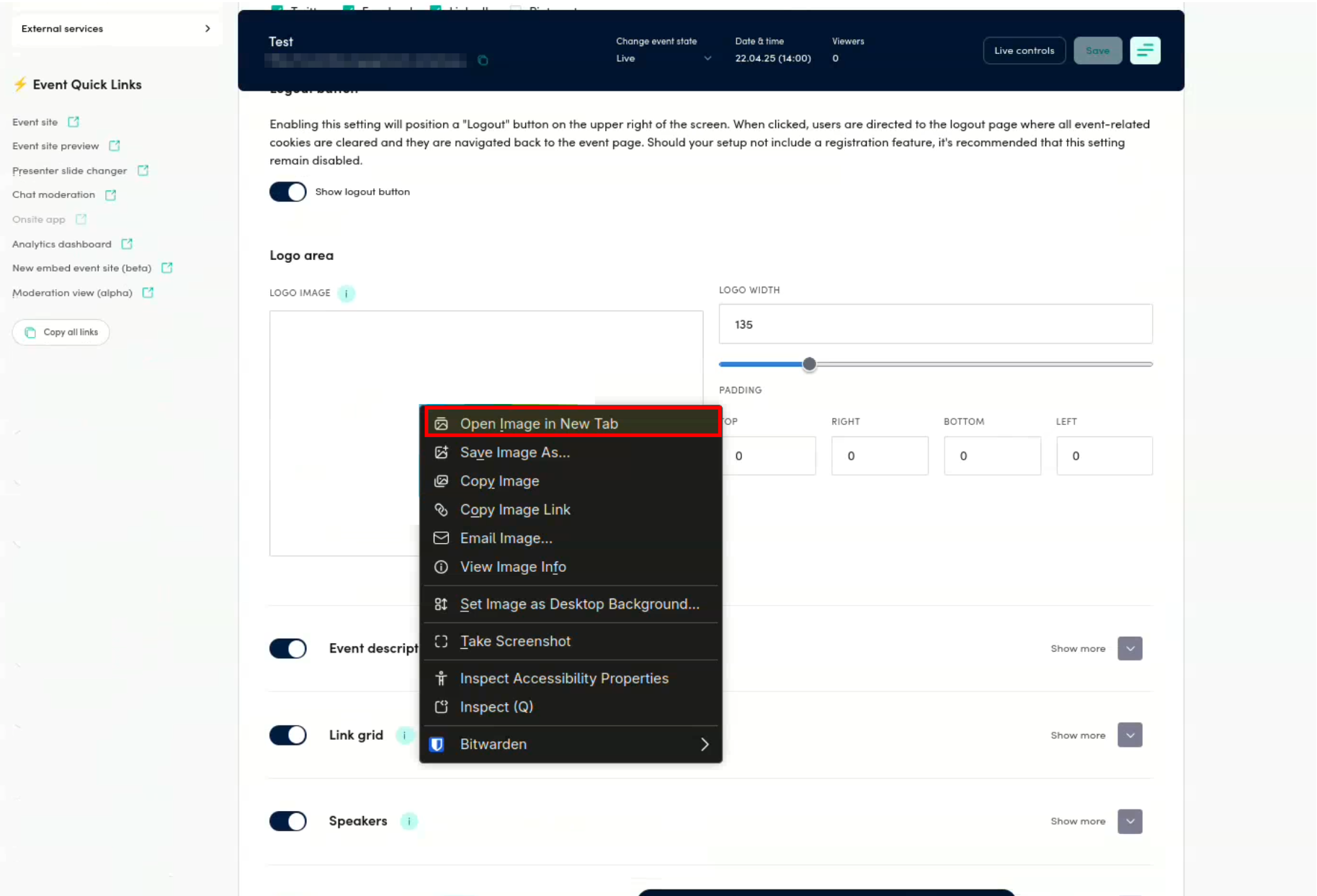
If you want to add an image or logo in your email template, you need to go to Build ⇒ Event Site Setup ⇒ Page Header ⇒ Logo Area.
There you should open the image in new tab. If you don’t have an image yet, you need to upload it – if the logo or other image isn’t meant for only this event, we recommend uploading it in the account-wide images.
- Upload the image
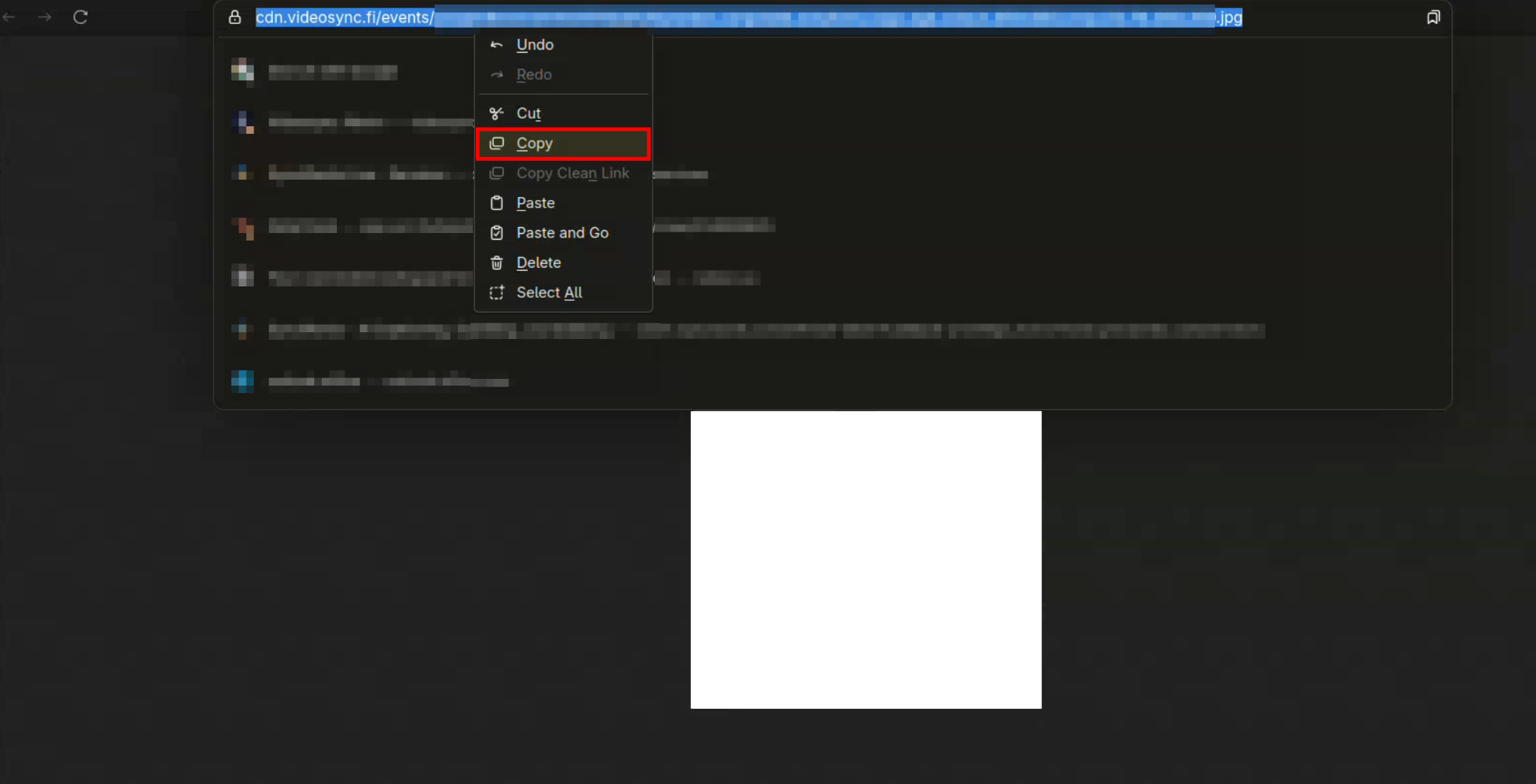
- Show the uploaded image in email
Then you should go to Share and Invite ⇒ Modify invitation email. There you should add an HTML image tag which you can modify to your needs and naturally you need to replace the logo image URL, but here’s an example:
<img src="https://cdn.videosync.fi/events/dev/common/images/4F6yK4GY6o-videosync_logo.png" alt="logo" width="50" height="50">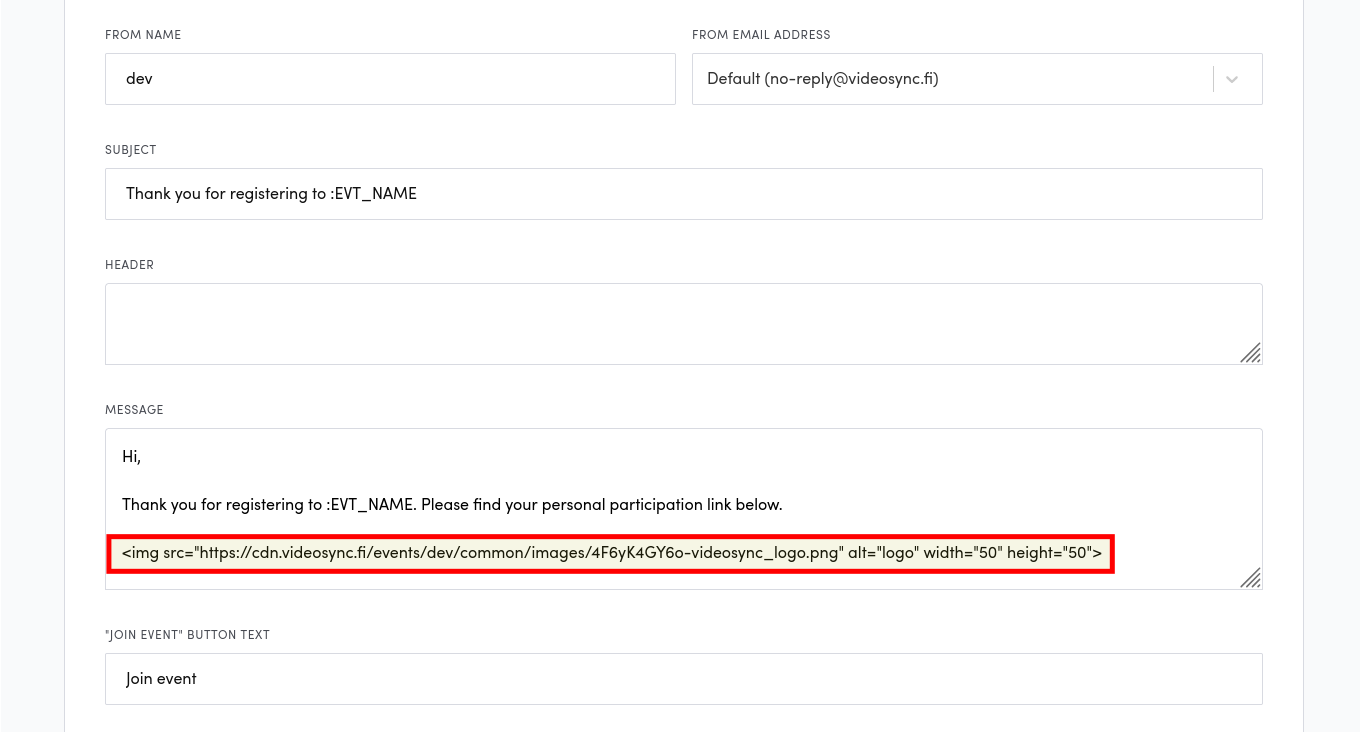
Can't find what you're looking for?
Our AI assistant is here to help you find the information you need.