
How to control slides during live
Last updated: August 13, 2025
You have different options on how to control slides, depending whether you have remote speakers or not.
No remote presenters - Live control room / Web studio
This is the most common option, as you can change slides directly in Live control room.
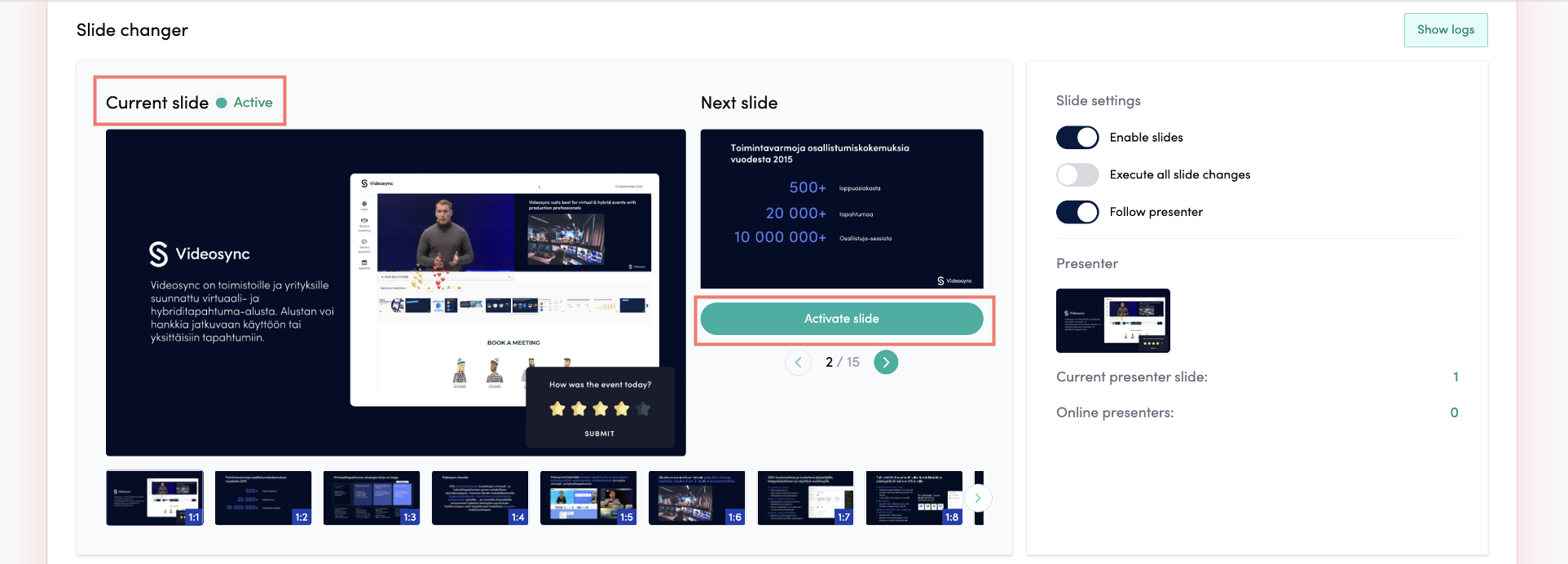
In Live control room can control your slides below the state selector or below video in Web studio. Current slide section shows the currently active slide when you’re live. Click Activate slide button to activate the next selected slide.
For instructions related live control room, check Streaming to Videosync from Teams rooms
Remote presenters - Presenter link /
Web studio
💡 The screenshots on this page are outdated. The speaker link looks similar to web studio link
If you have Web studio in use, you can find the link for remote speakers in Videosync Admin under Live – Web studio. To use the link, presenter doesn’t need Videosync credentials.
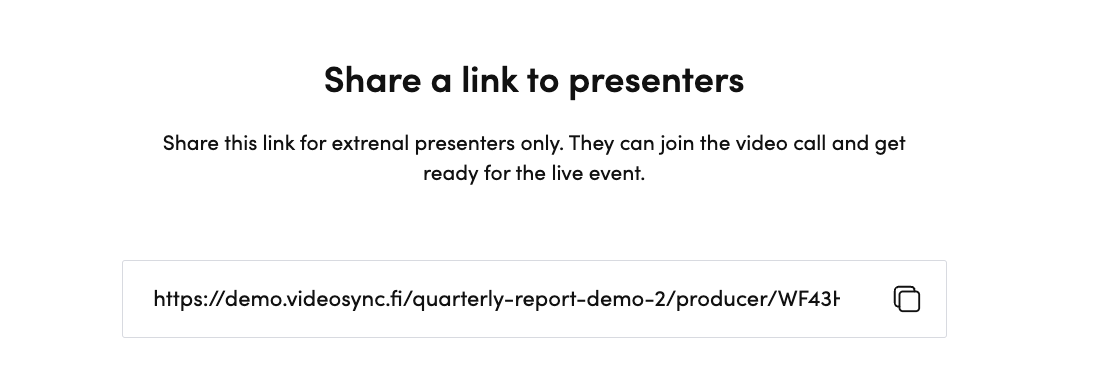
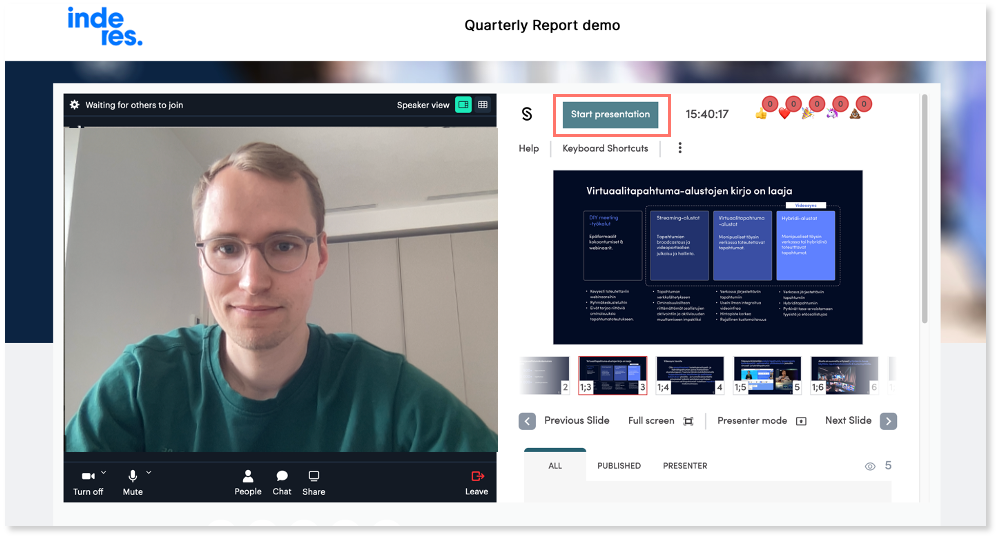
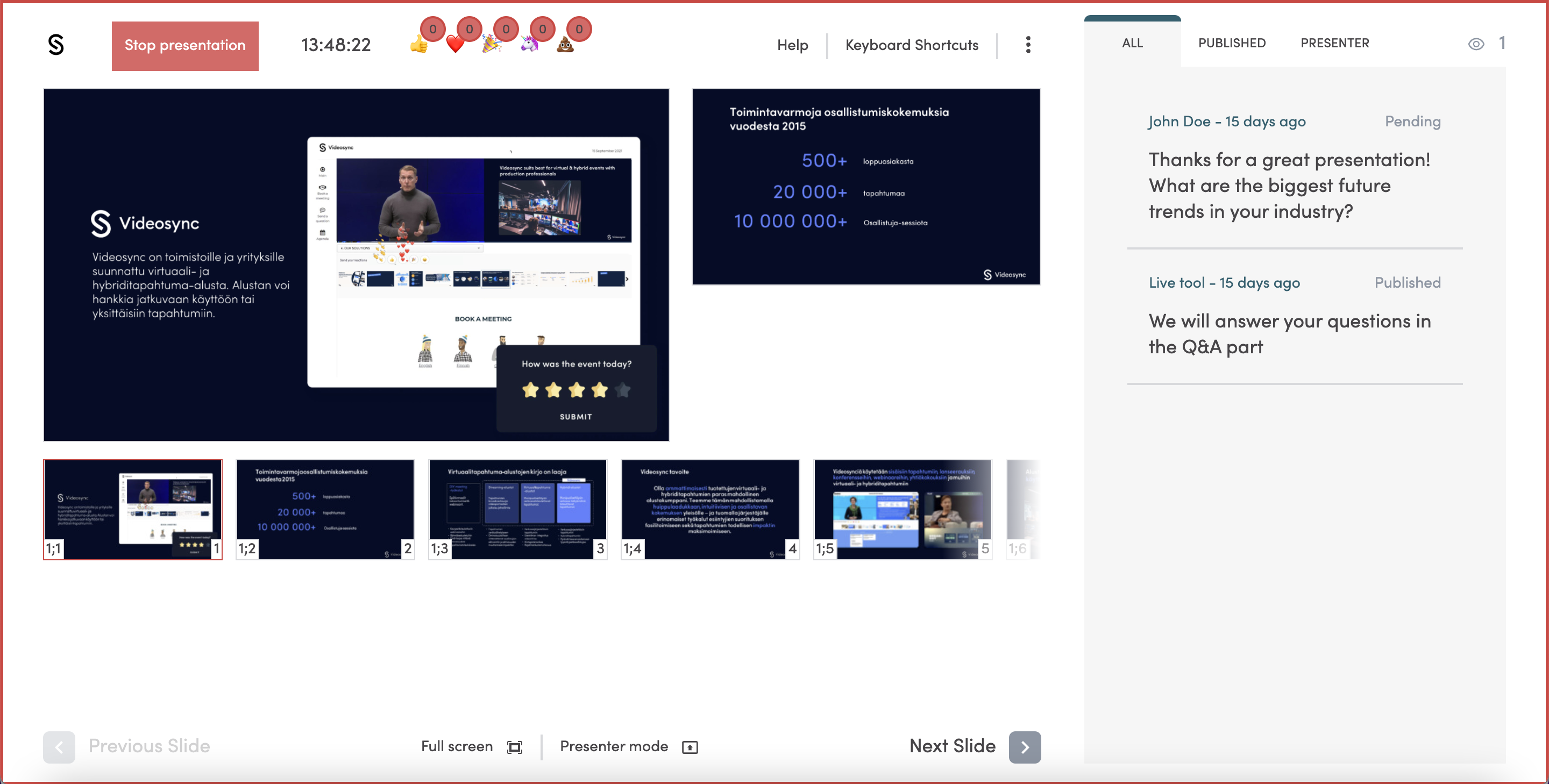
Through Presenter link your remote participant can control their stream and slides, but not the event state nor moderate the chat. Presenter can activate their turn to present by clicking Start presentation. After this their slide changes will be streamed to the event page. In case of issues, moderator can override the slide changes in Web studio.
External encoder
If you’re using external encoder, you can share the link to Presenter slide changer. To use the link, presenter doesn’t need Videosync credentials. You can find the link in the top right corner of Live control room.

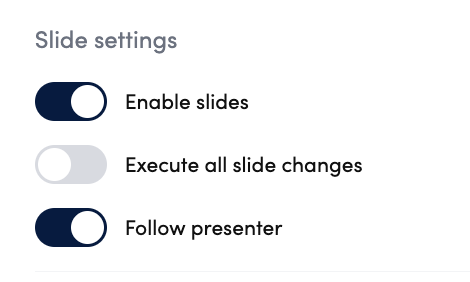
Ensure that you have Follow presenter enabled, so that the changes done by the presenter are active on the event page.
In presenter view, remote participant can activate their turn by clicking Start presentation. After this their slide changes will be streamed to the event page. In case of issues, moderator can override the slide changes in Live control room.
Can't find what you're looking for?
Our AI assistant is here to help you find the information you need.